
Tag, convert and organise at scale
Two ways to work: a Basic Editor for quick single-issue fixes, and a Full Editor plus a whole Processing Tools panel for bringing a folder of new comics up to standard in bulk.
A four-column workspace built for batches
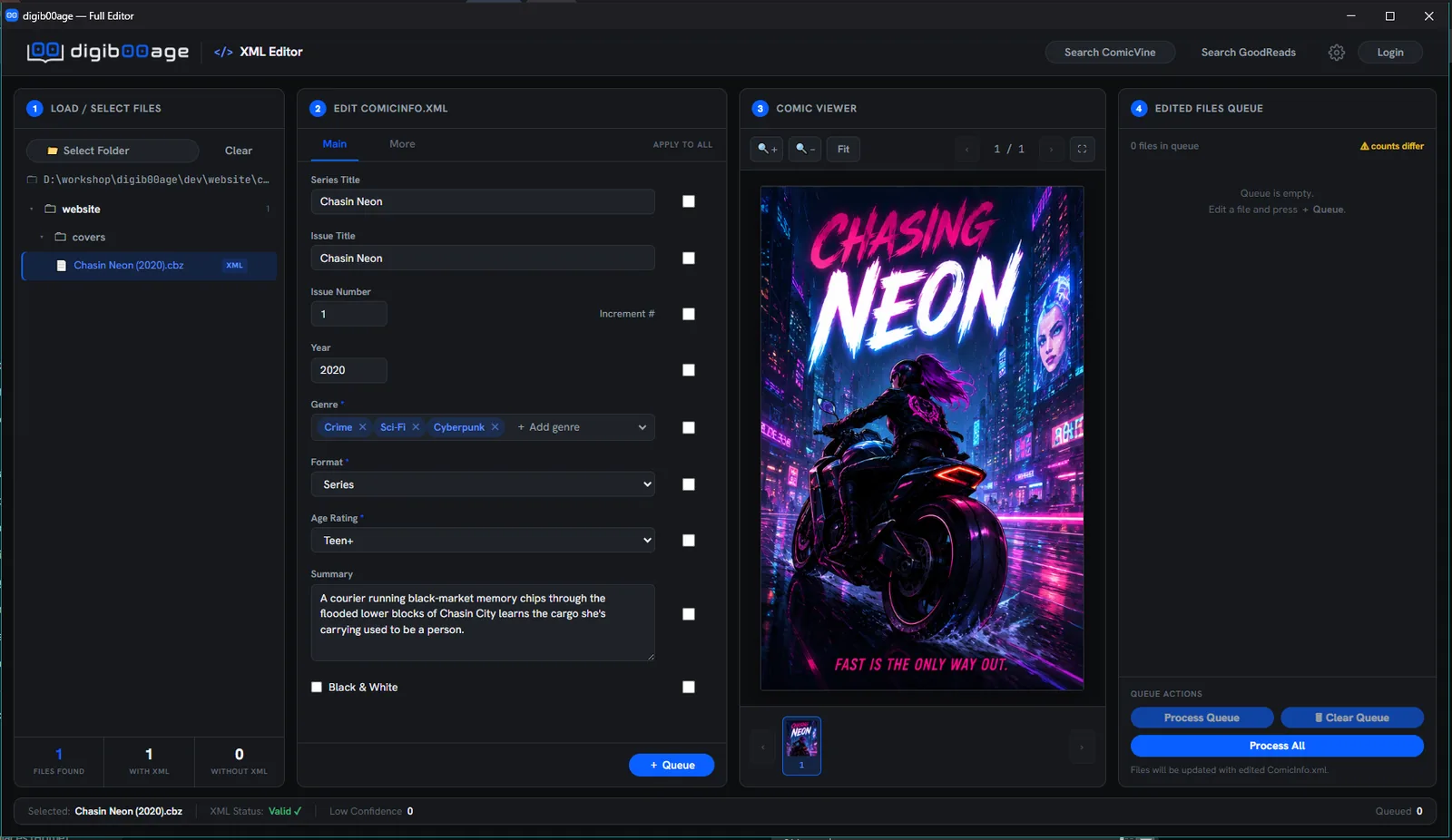
The Full Editor is a dedicated workspace for tagging comics before they enter your library: load a folder, edit the ComicInfo.xml form, check the page image against the cover, and queue the result — all in one screen.
- Folder/file picker with a tree view of everything loaded
- Main and More tabs cover every ComicInfo.xml field
- Genre, Format and Age Rating are enforced dropdowns, not free text — a data-hygiene report flags existing mismatches
- Sequential auto-increment issue numbering and per-field "Apply to All" batch overwrite
- Handles multiple ComicInfo.xml files inside one archive
Match issues without retyping everything
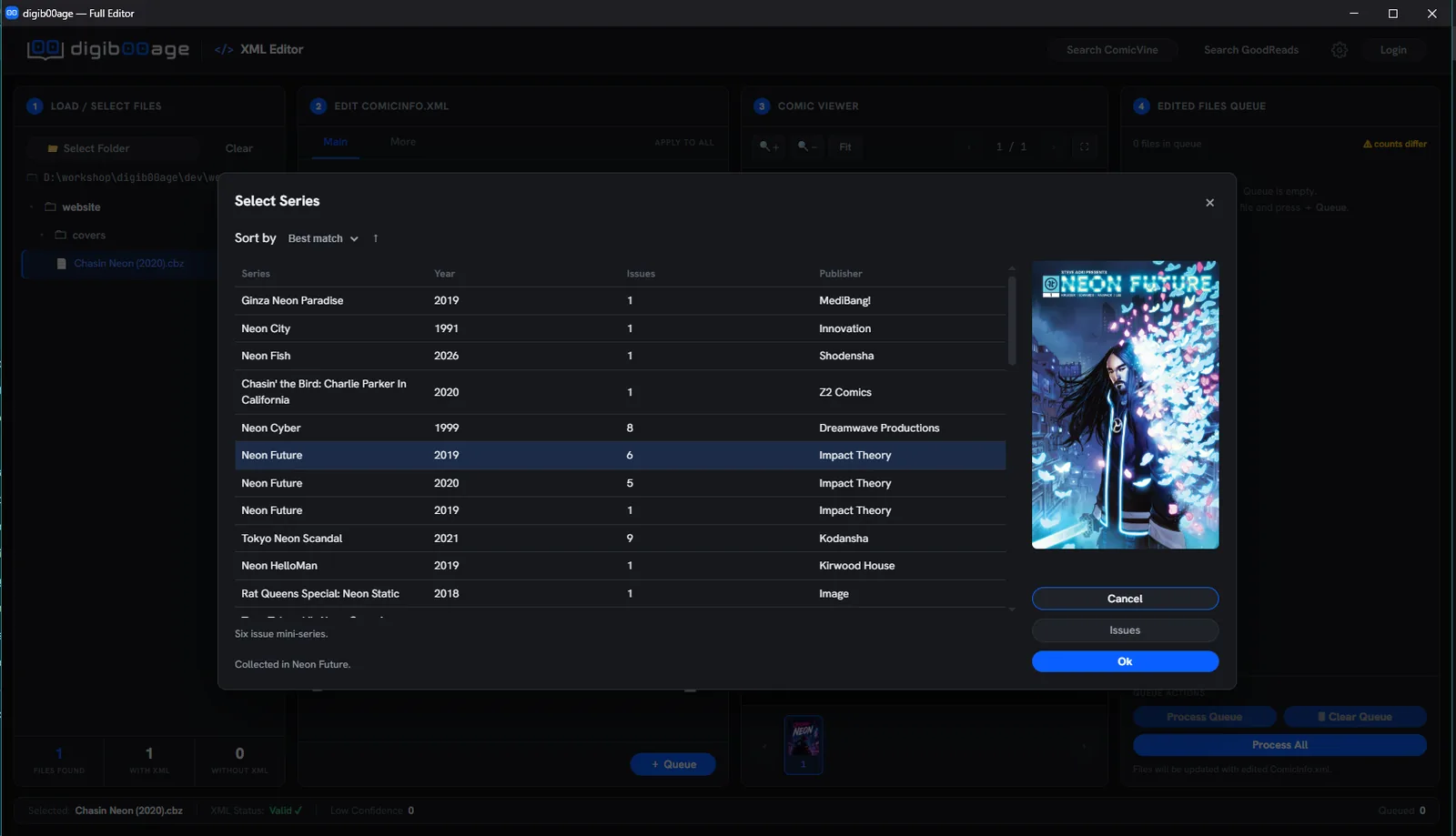
Search ComicVine by series (with optional issue number, year or count), pick the right series and issue from a modal showing cover art and descriptions, and apply the full match to the form in one click. A GoodReads quick-link sits alongside it for a second reference source.
Quick fixes without leaving the library
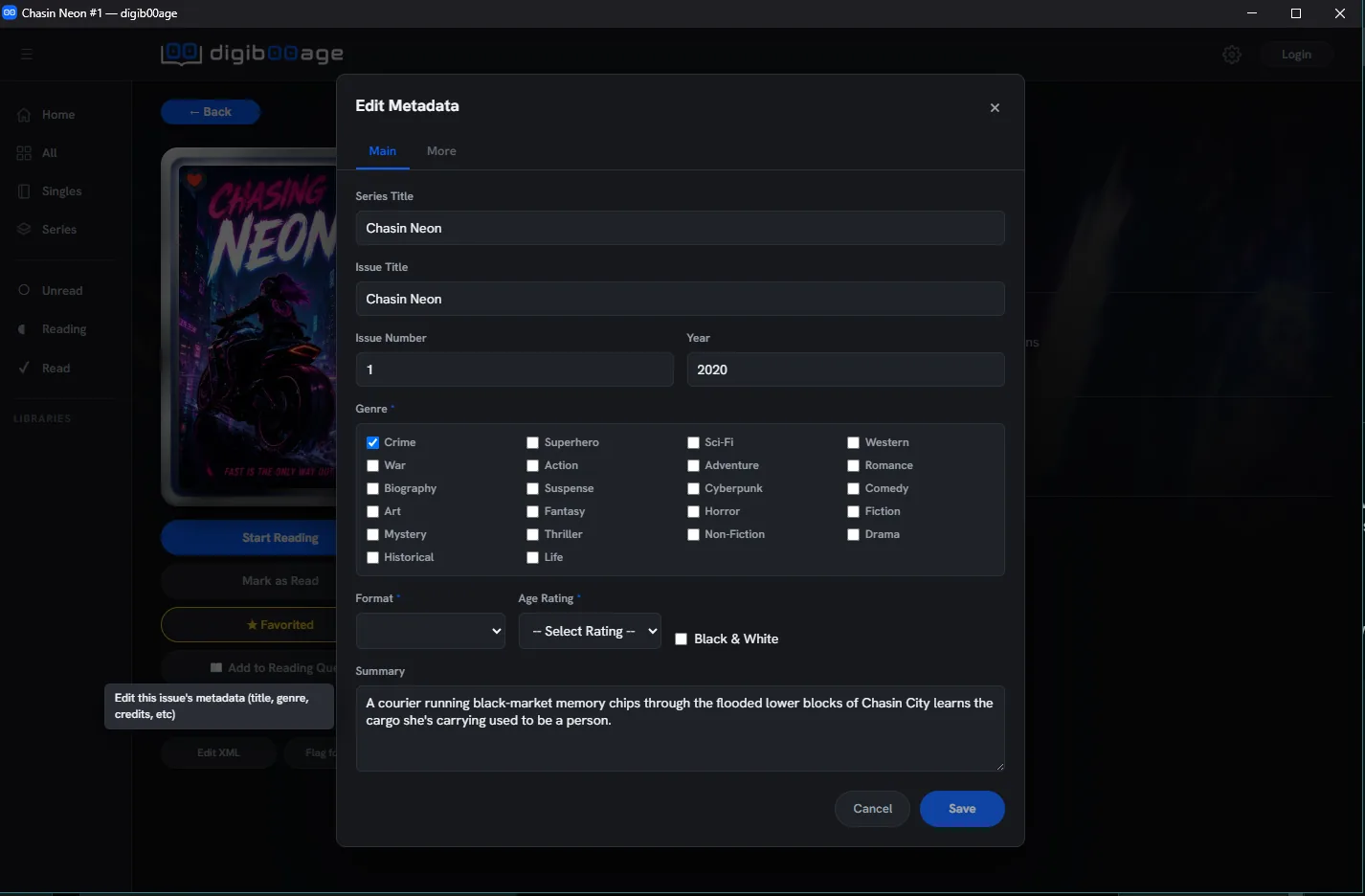
For a comic that's already catalogued and just needs a small correction, the Basic Editor pops up right from the library view — no need to open the full workspace.
Bring a folder of new comics up to standard
Run each tool on its own, or let the pipeline do it in sequence. Every tool has an in-app folder browser reachable from any device, admin-auth gating, background progress, and an audit log — whether you're running it locally, remotely, or in a headless Docker deployment.
File Rename
Batch or single filename renaming from parsed or manually-edited Series/Issue/Title/Year, with auto-increment, case styling, a live preview queue and an audit log. No database or library interaction.
Convert Archives
CBR→CBZ and PDF→CBZ conversion, with content-based format detection and an automatic backup-and-validate safety model.
Convert Images
Converts page images (jpg/png/gif/tiff/bmp) to WebP — lossless or quality-slider — and repacks the archive, with the same backup/validation safety model.
XML Tagging / CT Auto-Tag
Automated ComicTagger + ComicVine metadata matching against a folder of files, with a configurable match-confidence threshold. Low-confidence matches are flagged for review instead of silently mis-tagged.
Processing Folder Automation
A fixed pipeline — Convert Archives, then CT Auto-Tag, then Convert Images — run against one staging folder, on a schedule or on demand, with each stage independently toggleable.
Sort by Filename
Auto-organises loose CBZ/CBR files into per-title subfolders based on the parsed filename.
Move Series / Singles Folders
Stages processed folders into their correct alphabetical library location, with duplicate and near-duplicate detection.
Worth knowing: CBR (RAR) archives are read-only throughout digib00age — writing a real RAR requires paid WinRAR tooling, so any edit to a CBR repacks it as a CBZ instead.